Arc
Use Arc for partial circles, tangent transitions, and rounded sketch shapes that need more control than a full circle.
Center Arc
Center Arc places an arc from a center point and radius reference. Use it when the arc needs to stay organized around a known center.

Center Arc creates an arc from a known center point
3-Point Arc
3-Point Arc defines the curve through three picked points. It is useful when the arc should pass through existing sketch locations rather than be driven from an explicit center.
Place the arc in this order:
- Select
3-Point Arcfrom the sketch toolbar. - Pick the first endpoint.
- Pick a point the arc must pass through.
- Pick the final endpoint.
Each pick can snap to nearby sketch references such as the origin, axes, existing points and midpoints, lines, arcs, and circles. Hover until the snap preview appears, then click to use it. The first and final picks are the arc endpoints; their snaps are saved as constraints so the completed arc stays attached to the selected references. The middle pick controls the path of the arc but is not retained as a separate sketch point.
Hold Shift while placing a point when you want to bypass snapping for that pick.

Three-Point Arc passes through three picked sketch locations
Tangent Arc
Tangent Arc continues from existing sketch geometry while preserving a tangent transition at the connection point.
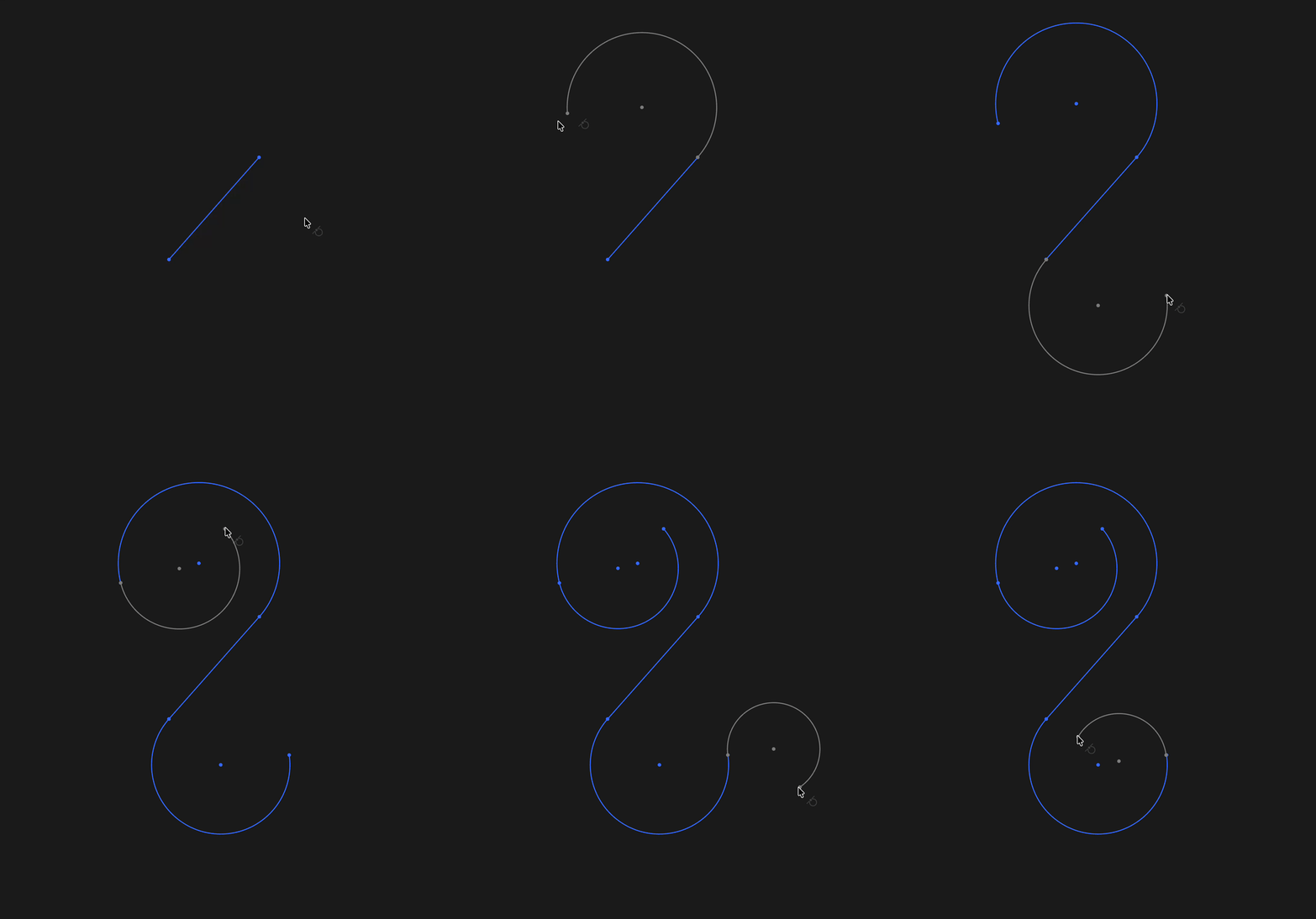
Tangent Arc continues smoothly from existing geometry