Snaps
Snaps help place new sketch geometry precisely by attaching points to nearby references such as the origin, existing endpoints, and other sketch entities.
Available snap targets include the sketch origin and axes, existing points, line midpoints, and the
nearest point on a line, arc, or circle. Move the pointer near a target and wait for the snap preview
before clicking. Zoo Design Studio adds the corresponding sketch constraint when the tool supports
a persistent relationship. Hold Shift while clicking to place a point without snapping.
3-Point Arc Snapping
The 3-Point Arc tool uses three picks: the first endpoint, a point along the arc, and the final endpoint. All three picks can use the snap preview for precise placement. Snaps on the first and final picks become constraints on the completed arc, keeping its endpoints connected to the origin or selected sketch geometry.
See Arc for the full placement workflow.
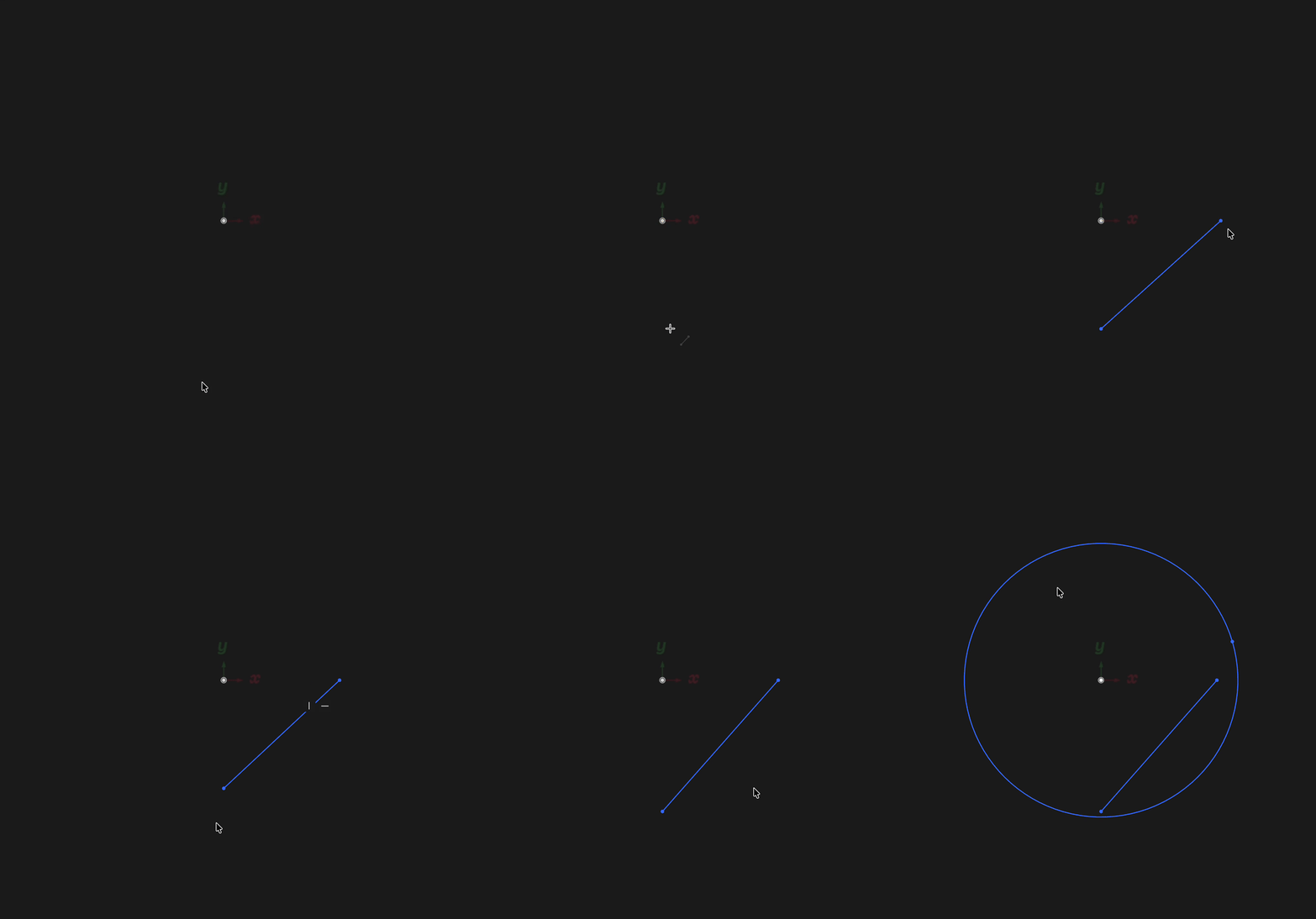
Snap to the origin when the sketch needs a stable reference point