Tools
Sketch tools modify existing sketch geometry without rebuilding the entire profile. Use them to clean up curves, remove unwanted overlaps, and refine profile boundaries before creating 3D features. Trim removes or shortens sketch segments back to the nearest intersecting geometry.
Trim
Trim removes or shortens sketch segments back to the nearest intersecting geometry. Use it to clean up overbuilt profiles, remove crossing construction leftovers, and refine closed regions before creating downstream features.
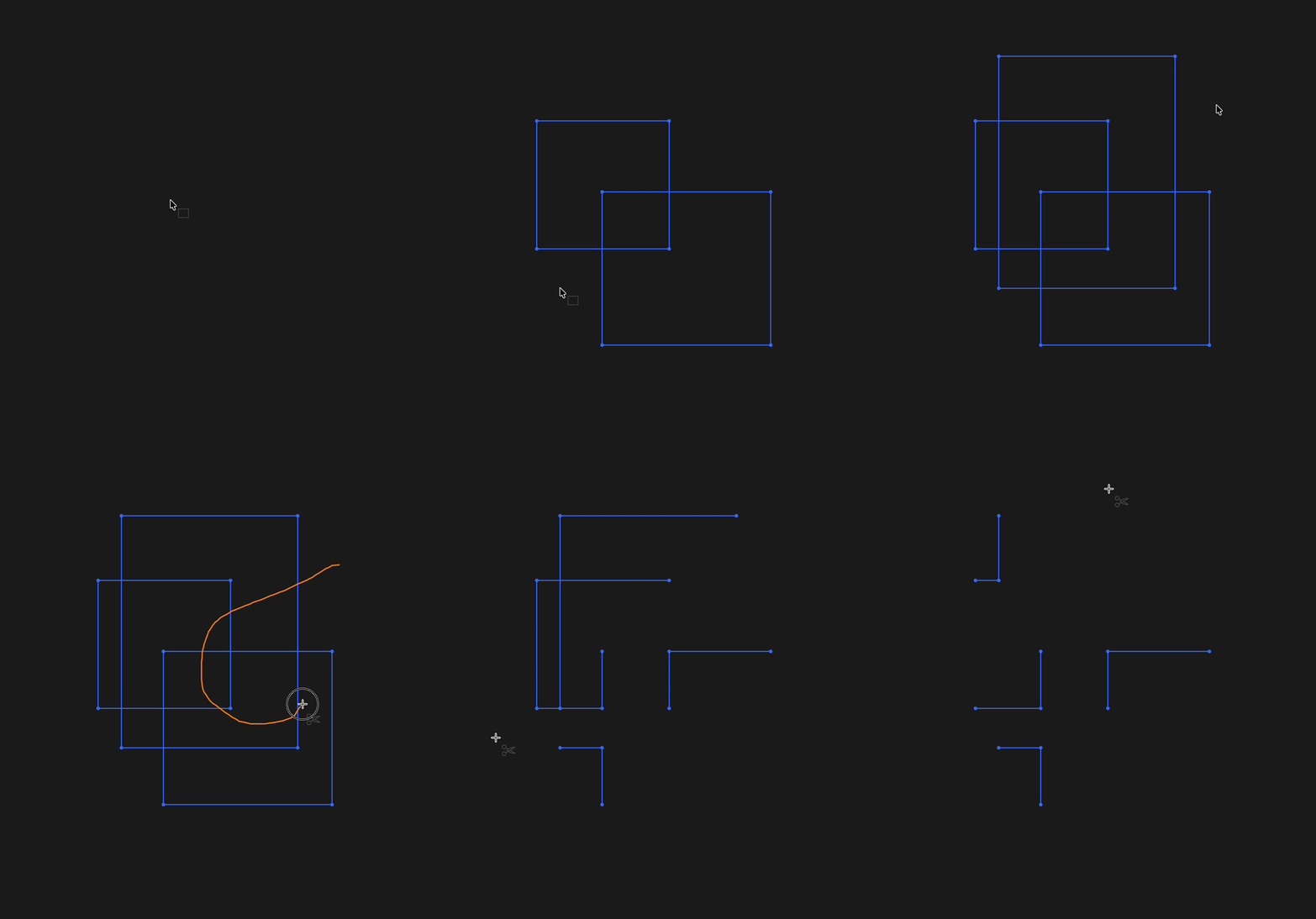
Trim removes unwanted sketch segments back to nearby intersections
Selection
Select the sketch segment portion you want to remove. Trim uses nearby intersections to decide where the remaining segment should stop.
Intersections
Trim works best when the segment you are trimming crosses, touches, or terminates near other sketch geometry. The nearest valid intersection becomes the new endpoint.
Closed Regions
Use Trim to turn rough construction sketches into clean closed profiles. After trimming, check that the intended region is still closed before using solid or surface features.
Design Applications
- Remove overhanging line or arc ends after creating a profile.
- Split a rough layout into a clean boundary for Extrude or Revolve.
- Clean up intersecting sketch geometry without rebuilding the sketch from scratch.
Are you interested in code?
Trim is an interactive sketch-editing tool in Zoo Design Studio. The resulting sketch is still KCL, but the exact generated code depends on which segment pieces remain after the edit.
Want to find out more about sketch geometry? Start with the Sketch Geometry section.