Tool Picker
While editing a sketch, point to existing sketch geometry or a constraint and press P. Zoo Design
Studio equips the related tool so you can create more geometry or add constraints of the same type
without returning to the Toolbar.
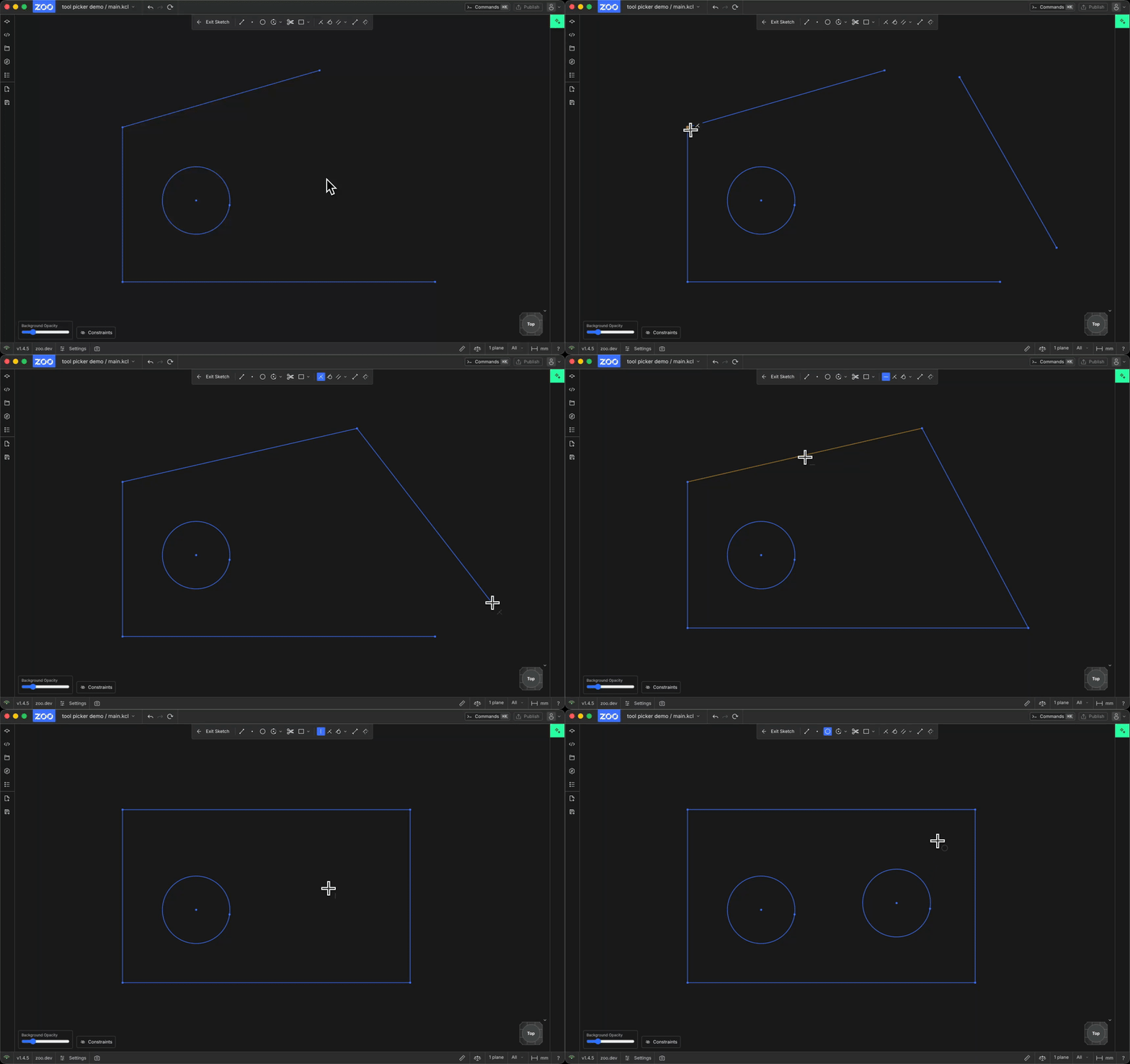
Hover existing sketch geometry and press P to equip its matching tool
- Move the pointer over existing geometry, a dimension, or a visible constraint symbol.
- Press
P. - Move the pointer to where you want to draw or apply the tool.
- Continue the tool's normal workflow.
The picker recognizes the following sketch geometry and constraints:
- A standalone point equips Point.
- A line segment, including a rectangle edge, equips Line.
- A circle equips Center Circle.
- An arc equips Center Arc.
- A dimension equips Dimension.
- A supported constraint symbol equips the matching constraint tool.
The picker uses the geometry's type, not necessarily the tool that originally created it. For example, every arc equips Center Arc, including arcs created with 3-Point Arc or Tangential Arc. Segment endpoints belong to their parent geometry, so they equip the parent geometry's tool instead of Point. Picking a constraint equips its tool for your next selection; it does not apply the constraint immediately.
Press P over empty sketch space to unequip the active tool. Unsupported geometry, including
splines, leaves the current tool unchanged. The picker only switches tools; it does not copy the
dimensions, constraints, or other parameters from what you hovered.