ML / AI
Zoo Design Studio includes AI-assisted workflows for geometry creation, design analysis, and iterative refinement.
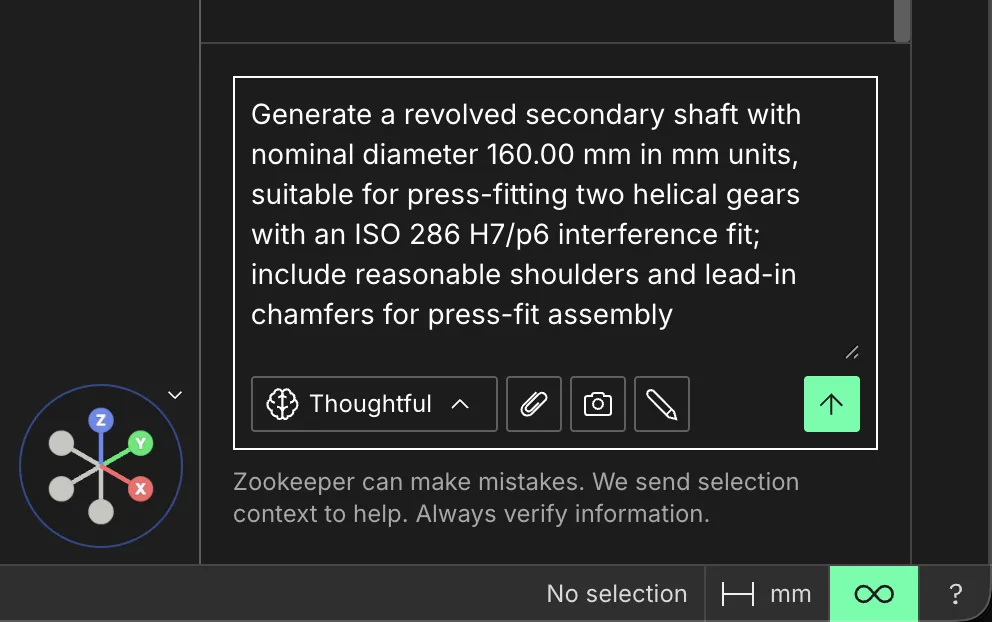
Describe the part or edit in the Zookeeper prompt, then refine the model with follow-up prompts
Most in-app ML and AI workflows route through Zookeeper, Zoo Design Studio's conversational CAD agent. Start there for the main user workflow around AI-assisted geometry creation, modification, and design reasoning.
Modes
Modes covers Auto, Standard, and Thoughtful modes, including how each mode balances reasoning depth and speed, and how plan availability affects the selector.
Queue and Steer
Queue and Steer lets you add follow-up prompts while Zookeeper is still working and redirect the active task when your intent changes.
Zoodle
Zoodle lets you draw directly on the model viewport and send that visual guidance to Zookeeper. Use it when a marked-up region, edge, or face is clearer than a text-only instruction.
Revertible AI Changes
Revertible AI Changes lets you explore larger Zookeeper edits with undo and redo. Use it to compare an AI-generated result against the previous design state, move through manual and AI edits together, and restore files created or deleted by Zookeeper.
Project Instructions
Project Instructions explains how to
add an AGENTS.md file to a project for durable Zookeeper preferences such as units, naming,
modeling conventions, and custom-function policy.
Troubleshooting unexpected Zookeeper behavior
If Zookeeper takes a strange path, gets stuck, or produces a result that should have been simpler, ask it why. The answer can give useful context for your next step and help decide whether the behavior should be reported. For example:
This should have been a simple two-feature operation, but it took much longer and produced poor results. What pushed you toward that strategy?
That reply can help separate prompt ambiguity from a connection or runtime issue, reasoning failure, KCL or modeling-kernel issue, or system-prompt problem.
If it still looks like a product issue, use Export conversation from the Zookeeper menu and send the export with what you expected and what happened. The export lets Zoo engineers inspect the reasoning, map it back to the actual steps Zookeeper took, and make targeted fixes.
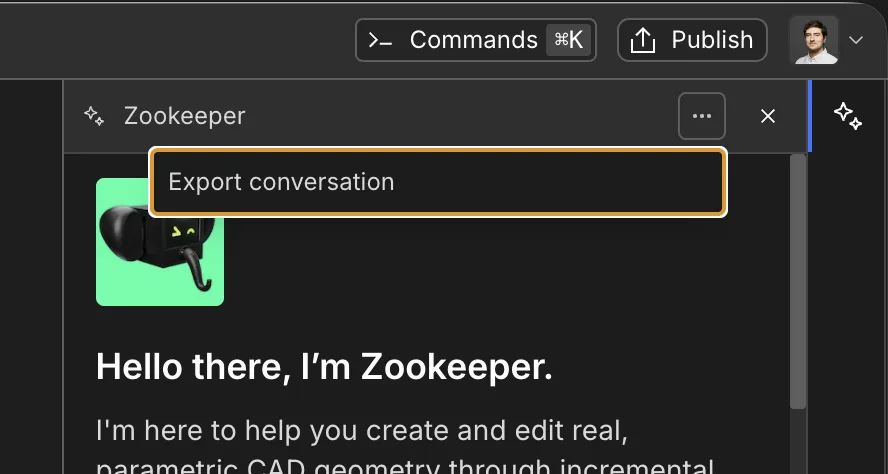
Export the Zookeeper conversation when you need to report unexpected behavior
Support channels:
- Zoo Community Forum for workflow questions and public discussion.
- Discord for faster back-and-forth with the team and other users.
- GitHub for public bug reports.
- Support form for direct support.