Named Views
The Views pane lists named views produced by the current KCL program. A named view combines a camera with a visibility preset, so you can return to a useful angle and set of visible objects.
Named views are stored in the model's KCL using
view::named(), not as operations in the Feature Tree or
as project settings. Creating and editing them requires KCL 3.0 or later, for example with
@settings(kclVersion = 3.0) at the top of the file.
Open and Apply a View
Open Views using its workspace sidebar button. Click the frame icon beside a view to apply its camera and visibility preset. An eye inside the frame marks the active view. The lighter text beside each name summarizes its camera orientation, distance when specified, and projection.
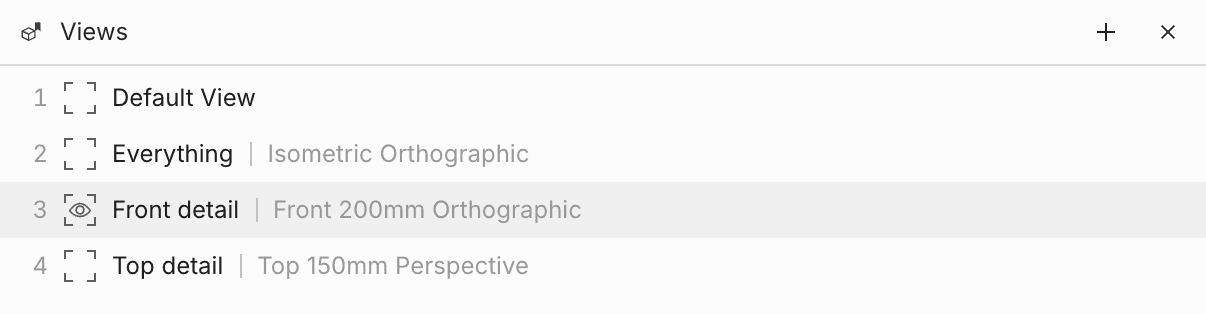
Moving the camera exits the active view and restores the visibility defined by the model's KCL,
including authored hide() operations. The camera stays where you moved it, and the active
indicator clears. Apply the view again to return to its saved camera and visibility preset.
Default View is built in and cannot be renamed, edited, or removed. Applying it resets the
camera like Reset View and restores the visibility defined by the model's KCL, including
authored hide() operations.
Create a Named View
-
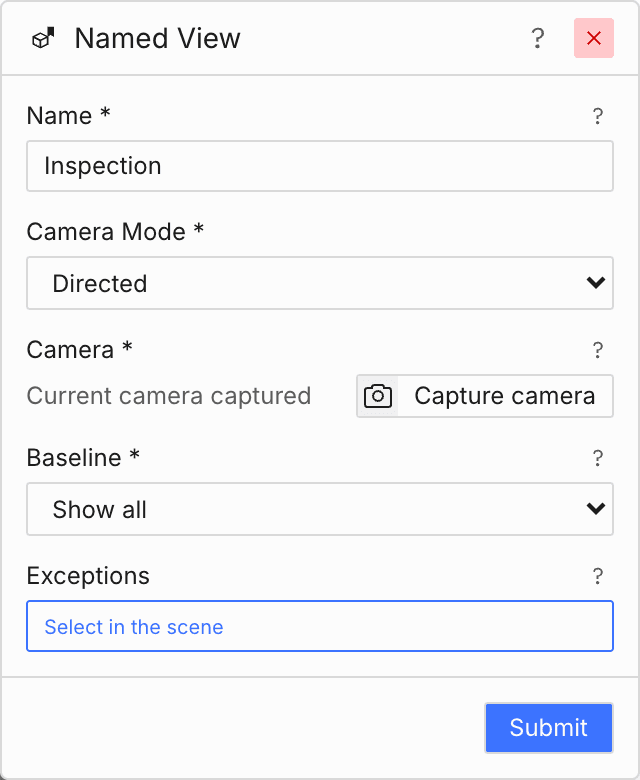
Click Plus in the Views pane, or run Named View from the Command Bar.
-
Enter a name.
-
Choose a Camera Mode:
- Oriented uses a standard orientation such as Front, Top, or Isometric, with an orthographic or perspective projection. Under Advanced, optionally specify a target and distance; otherwise the view fits the model.
- Directed uses the current scene camera. Move the camera to the angle you want, then click Capture camera. Capture again if you want to replace it before submitting.
-
Choose the visibility Baseline. Show all shows objects except those selected in Exceptions. Hide all hides objects except those selected in Exceptions. Exceptions apply to whole objects: selecting a face or edge selects its owning object.
-
Click Submit to add the named view to the KCL program.
Edit or Remove a View
Double-click a view's name, or right-click its row and choose Edit. You can edit the active view too: opening Edit clears its active indicator without moving the camera. Changes update the existing KCL declaration without automatically reapplying its camera. Click the frame icon to apply the updated view.
Exception selections are read-only while editing; change their KCL expression directly if needed.
Right-click a view's row and choose Remove to remove its KCL declaration. This does not delete the geometry it references.
Views declared in imported modules or generated inside functions have a lock icon. You can apply them, but must edit their source code rather than edit or remove them from the pane.
Legacy Named Views
The Create named view (Legacy), Load named view (Legacy), and Delete named view (Legacy)
commands are deprecated. Use the KCL-backed Views pane for new views instead.
The legacy commands remain available for camera presets stored in project.toml. Those presets
are separate from KCL-backed views and are not automatically migrated into KCL.