Blend
Use Blend to create a smooth transition surface between two selected open boundary edges. It is useful for connecting separate surface bodies with a controlled bridge instead of an abrupt gap or hard corner.
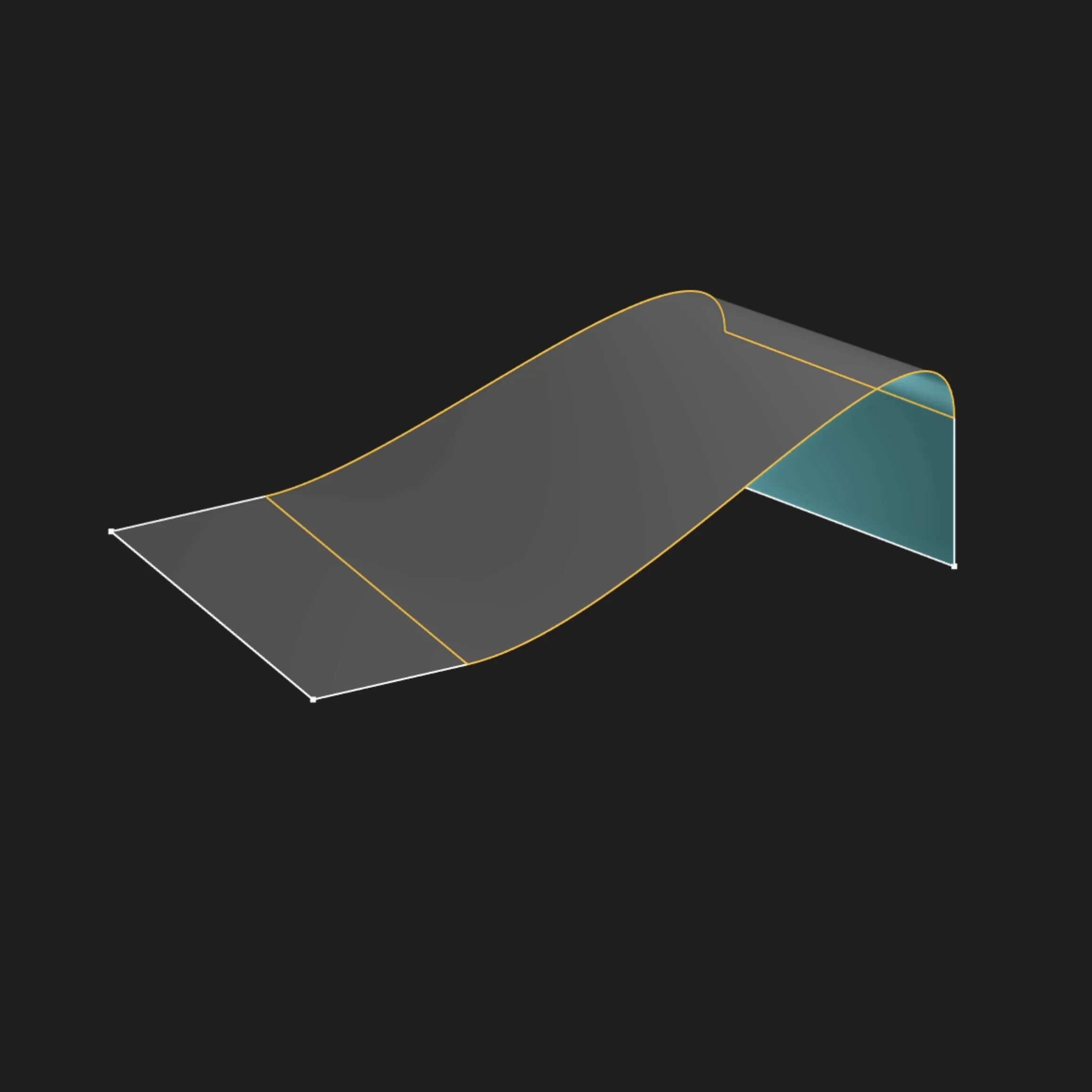
Selection
Blend works from exactly two selected open boundary edges. These are the exposed end edges of 3D surface bodies, not the original sketch segments used to create those surfaces.
Select one boundary edge on the first surface, then select the matching boundary edge on the second surface to create the transition between them. If the preview crosses, twists, or uses the wrong side of a surface, select a different pair of boundary edges before accepting the feature.
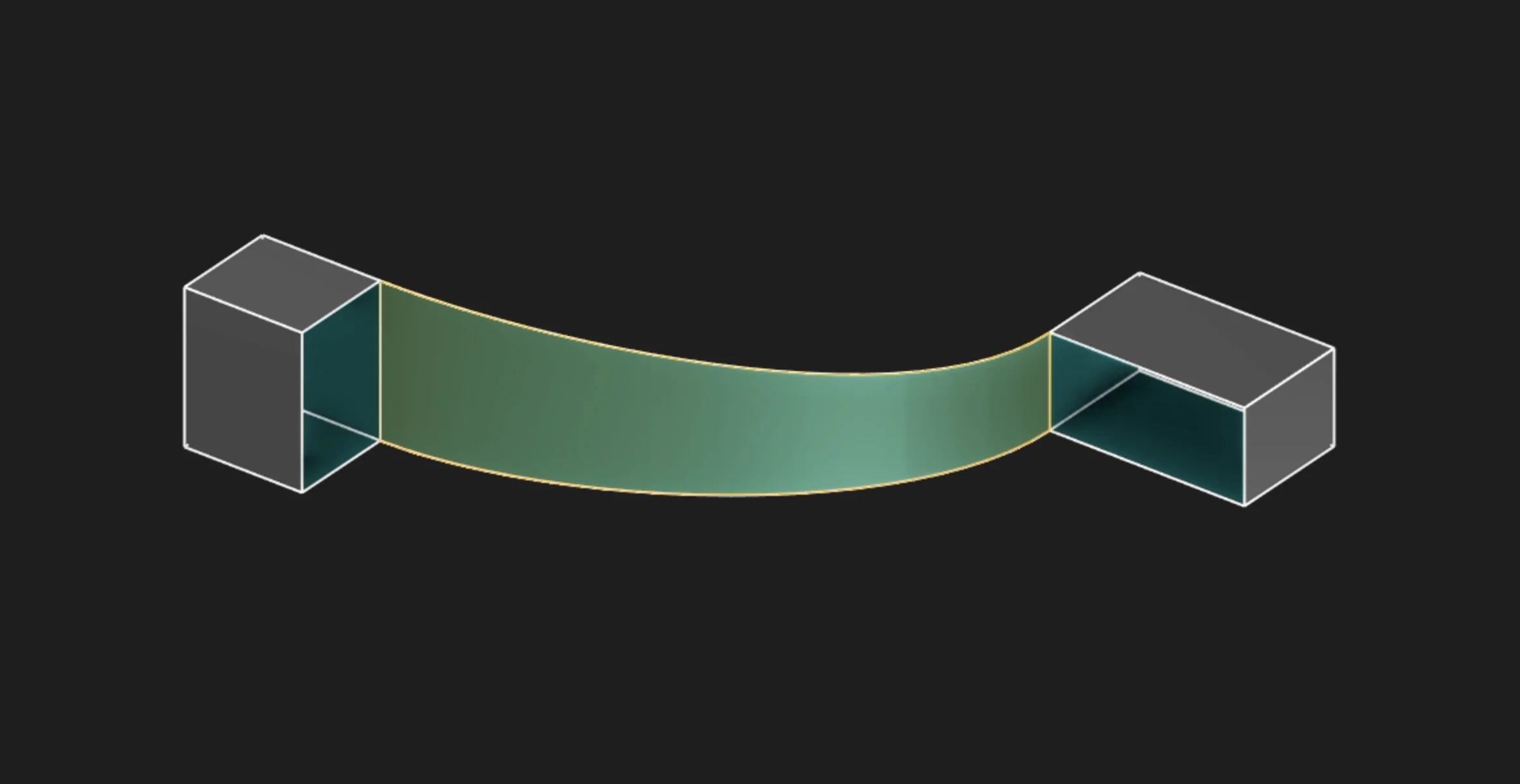
Selected open boundary edges
Edge Spans
When you select an edge in the scene, Blend uses the full length of that edge as one side of the transition. In KCL, the same operation can also use bounded edge spans when you only want to blend part of an edge.
Edge spans are normalized from 0 to 1 along the selected edge. lowerBound defaults to 0,
upperBound defaults to 1, and tagged edges use the full span. Keeping lowerBound = 0 while
lowering upperBound clips the blend back toward the edge start point.
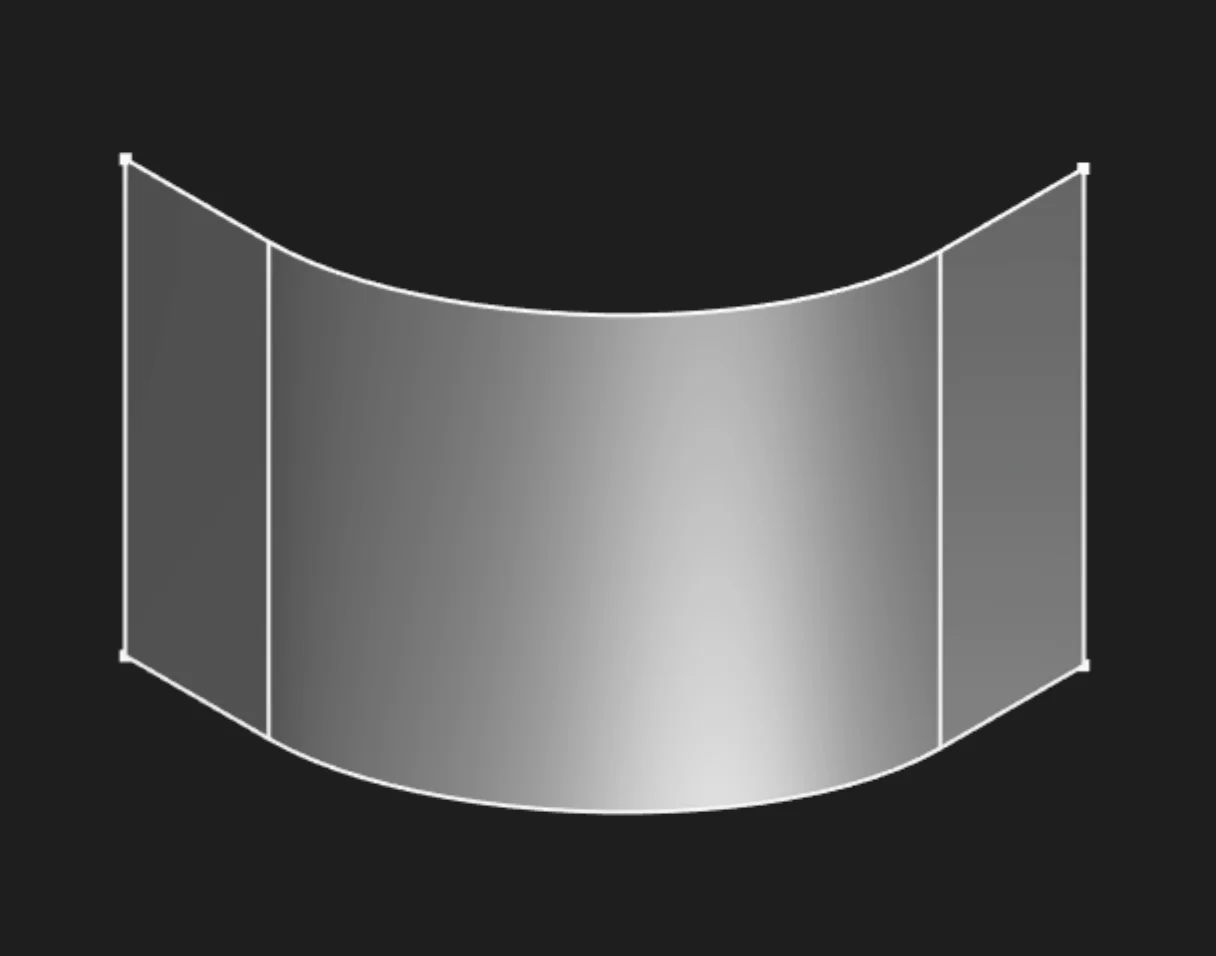
Left edge span: lowerBound = 0, upperBound = 1
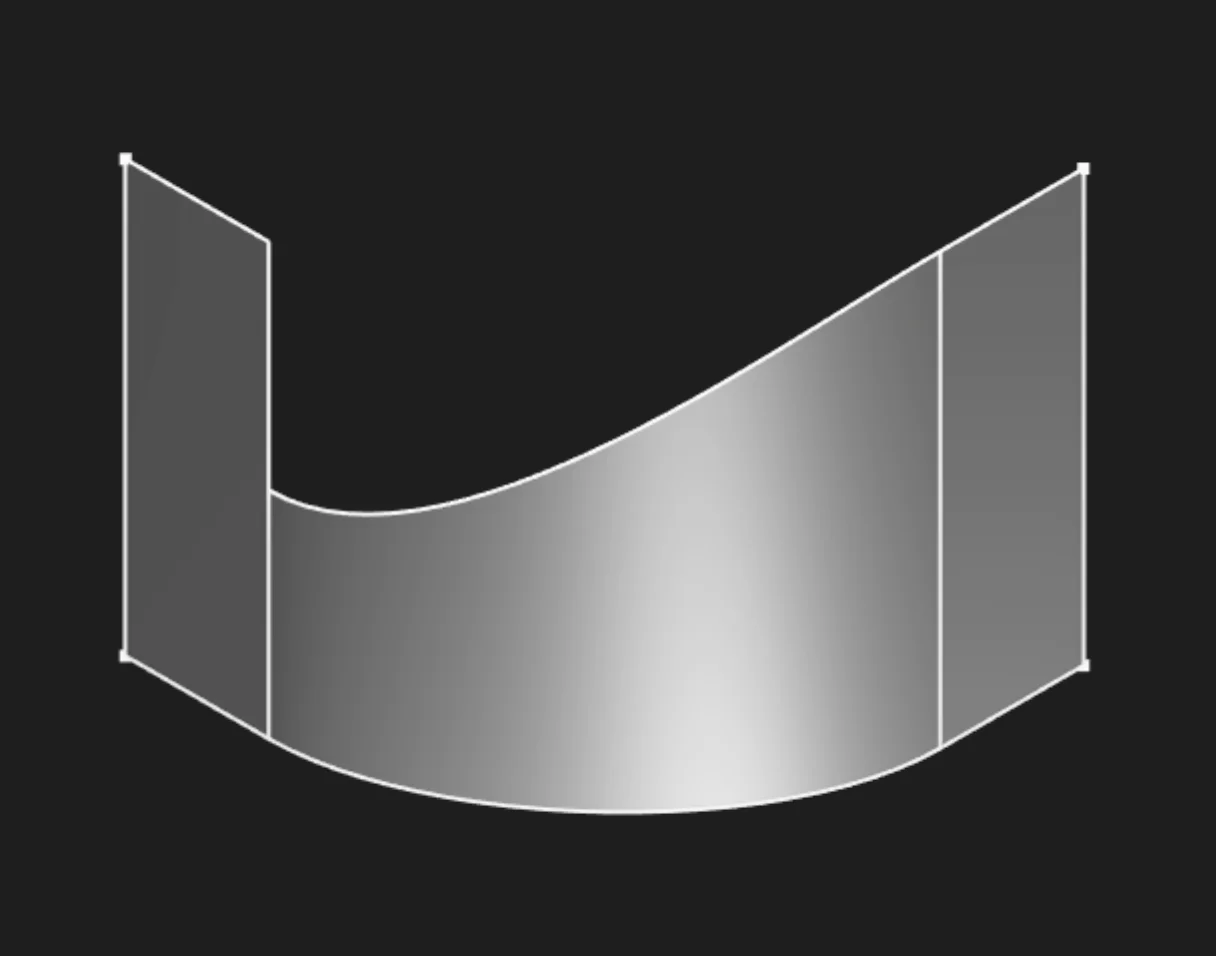
Left edge span: lowerBound = 0, upperBound = 0.5
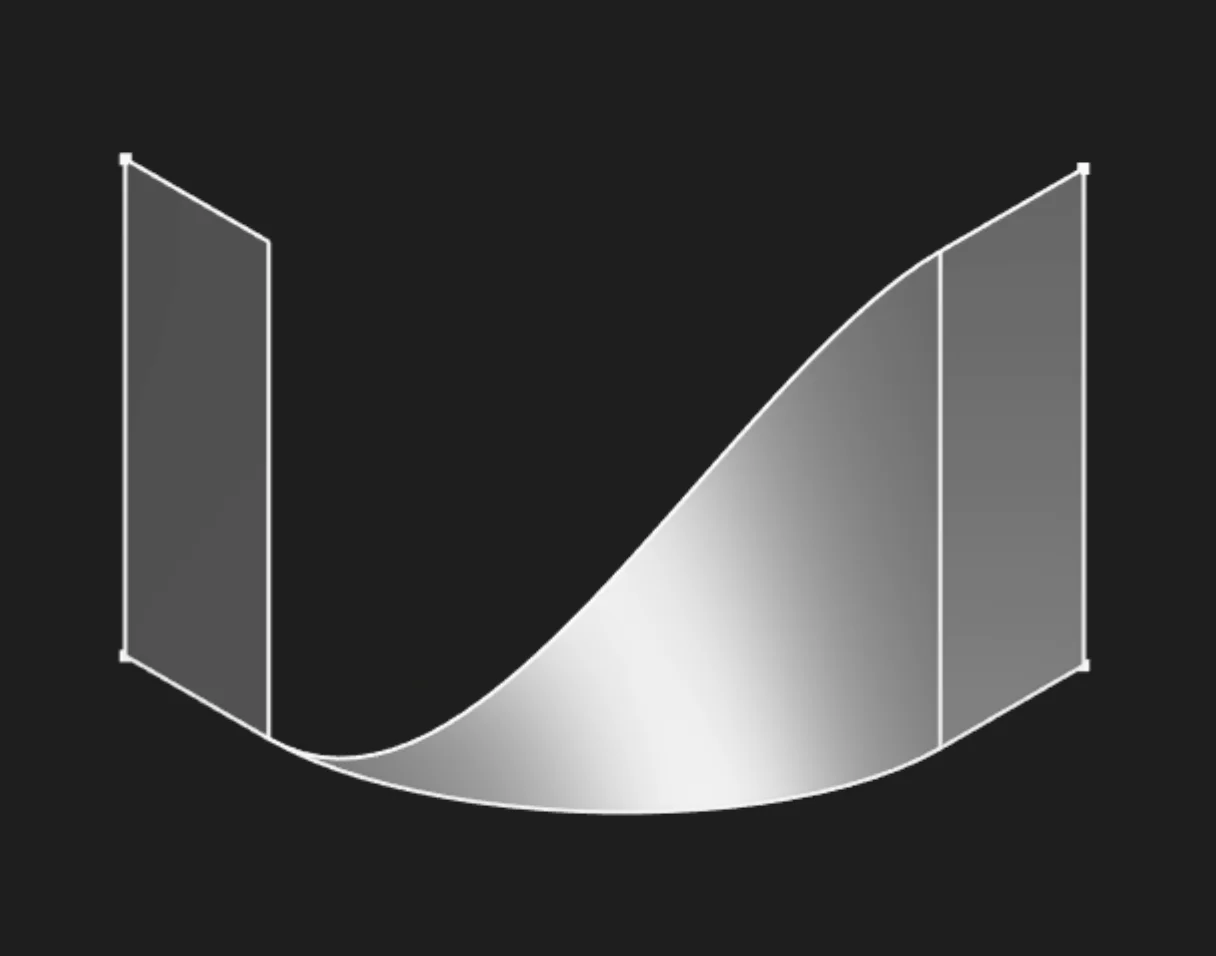
Left edge span: lowerBound = 0, upperBound = 0
Other Parameters
Blend is driven by the two selected boundary edges. It cannot use fewer or more than two edges.
Unlike Extrude, Revolve, Loft, and Sweep surface tools, there is no bodyType parameter to set here,
because the Blend result is already a surface.
Are you interested in code?
Zoo Design Studio writes KCL behind the scenes. A surface blend is a blend call with two edge
inputs. Tagged edges blend the full edge span.
Want to find out more about the blend function? Check it out
in our KCL docs.