Zoodle
Zoodle is the visual handoff between the model viewport and Zookeeper. It captures the current view, lets you draw on top of it, and attaches that markup to your prompt so Zookeeper can understand the geometry you mean.
Use Zoodle when text alone would be too vague: a target face, an edge direction, a hole pattern, a cutout location, or an annotation that belongs to a specific feature.
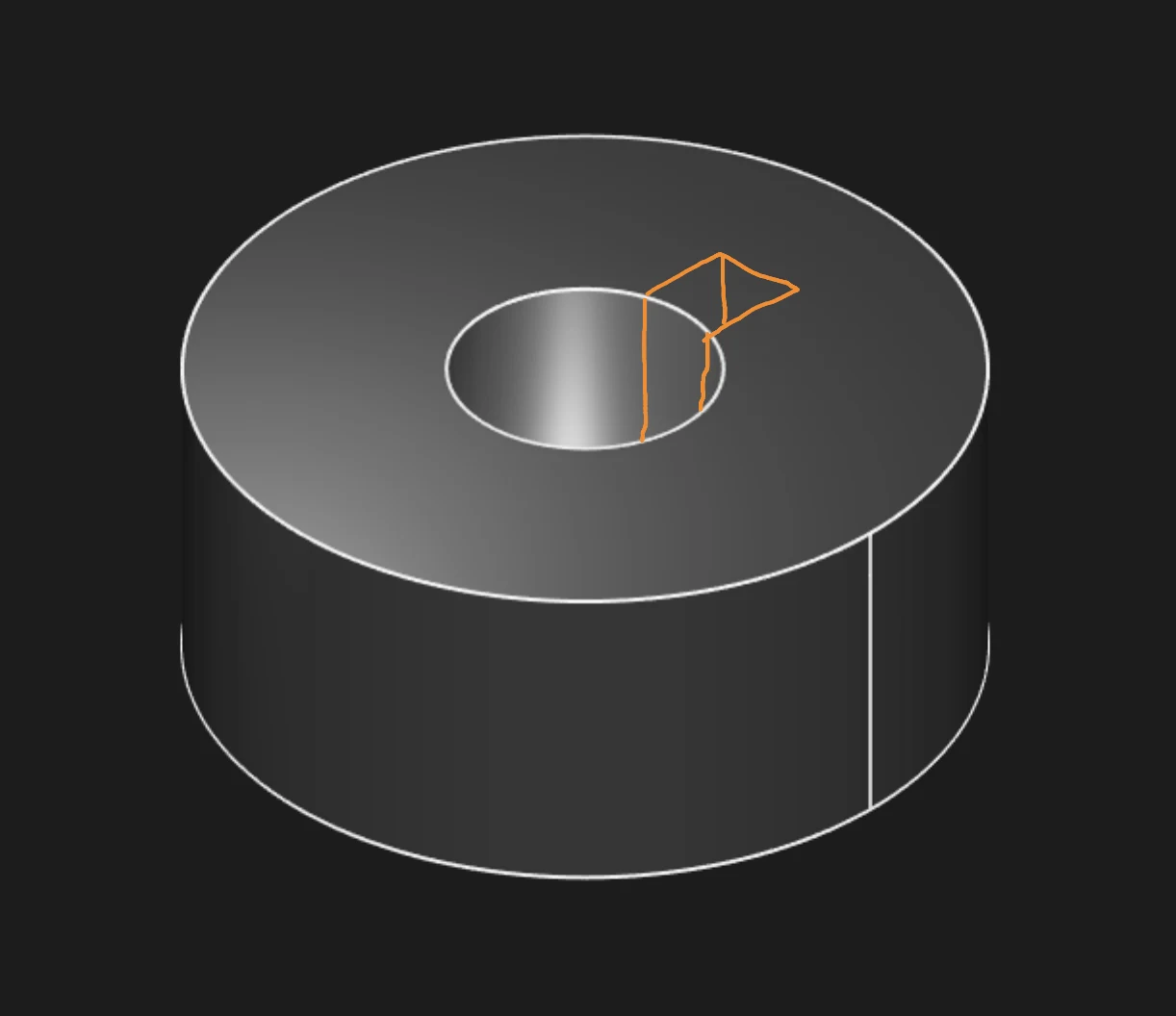
Capture the viewport, mark the target, then pair the image with a prompt
Choose a workflow
You can use Zoodle for many kinds of visual CAD guidance. These examples cover a few common starting points:
- Create new parts: mark up a reference sketch or viewport and ask Zookeeper to generate editable CAD.
- Edit parts: mark an existing model and ask Zookeeper to add, move, cut, or resize geometry.
- Add annotations: point to the feature that needs model-based definition annotations and describe the GD&T requirement.
How it works
Zoodle sends Zookeeper two pieces of context:
- The captured viewport, including any markup you draw on top of it.
- The text prompt you send with the image.
The image tells Zookeeper where to look. The prompt tells it what to do. After Zookeeper responds, verify the generated geometry, updated KCL, and editable parameters before continuing.
For the broader assistant workflow, see Zookeeper and AI Chat.