STEP Import (Experimental)
🧪 Experimental feature: STEP import is under active development and currently supports read-only 3D geometry. Imported STEP geometry cannot be edited in Zoo Design Studio, and 2D STEP drawings are not supported. Some files may fail to import, especially files with complex geometry, and behavior may change as the importer improves.
STEP import brings precise CAD geometry from other systems into Zoo Design Studio. Use it for supplier parts, mechanical assemblies, visual reference geometry, and CAD interchange with tools such as SolidWorks, CATIA, NX, Creo, Inventor, Fusion 360, and Onshape.
Adding a STEP file to Project Files makes it available to the project. To load and display the
geometry, reference that file from KCL with an import statement.
Add the STEP file to your project
Before importing a STEP file, make sure it is in the Zoo Design Studio project. The simplest
workflow is to drag the .step or .stp file directly into the Project Files panel.
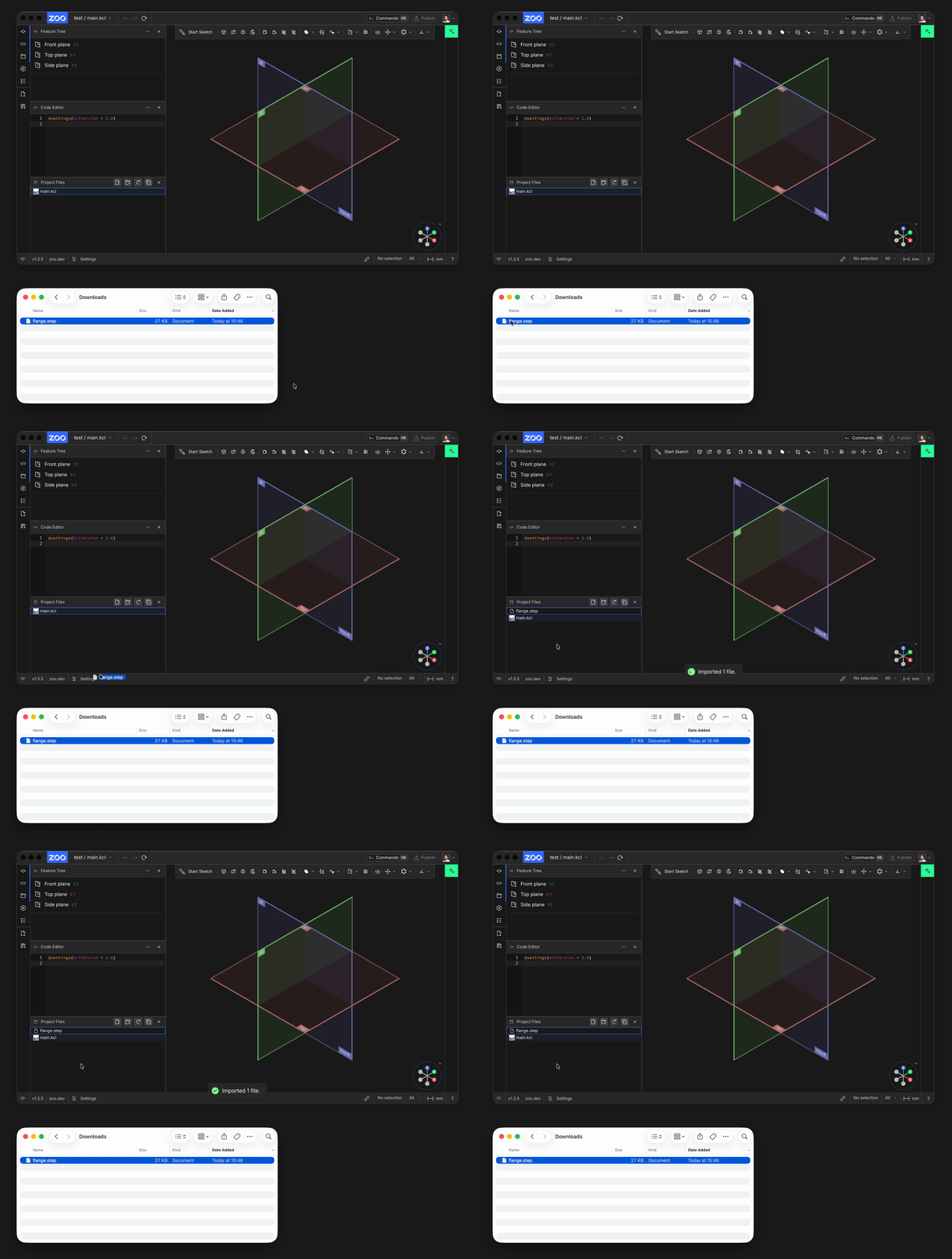
Drop the STEP file into Project Files when you want Zoo Design Studio to add it to the current project
In the desktop app, you can also add the file outside Zoo Design Studio by placing it in the project
folder next to main.kcl. After it is added, confirm that the STEP file appears in Project Files
before referencing it from KCL.
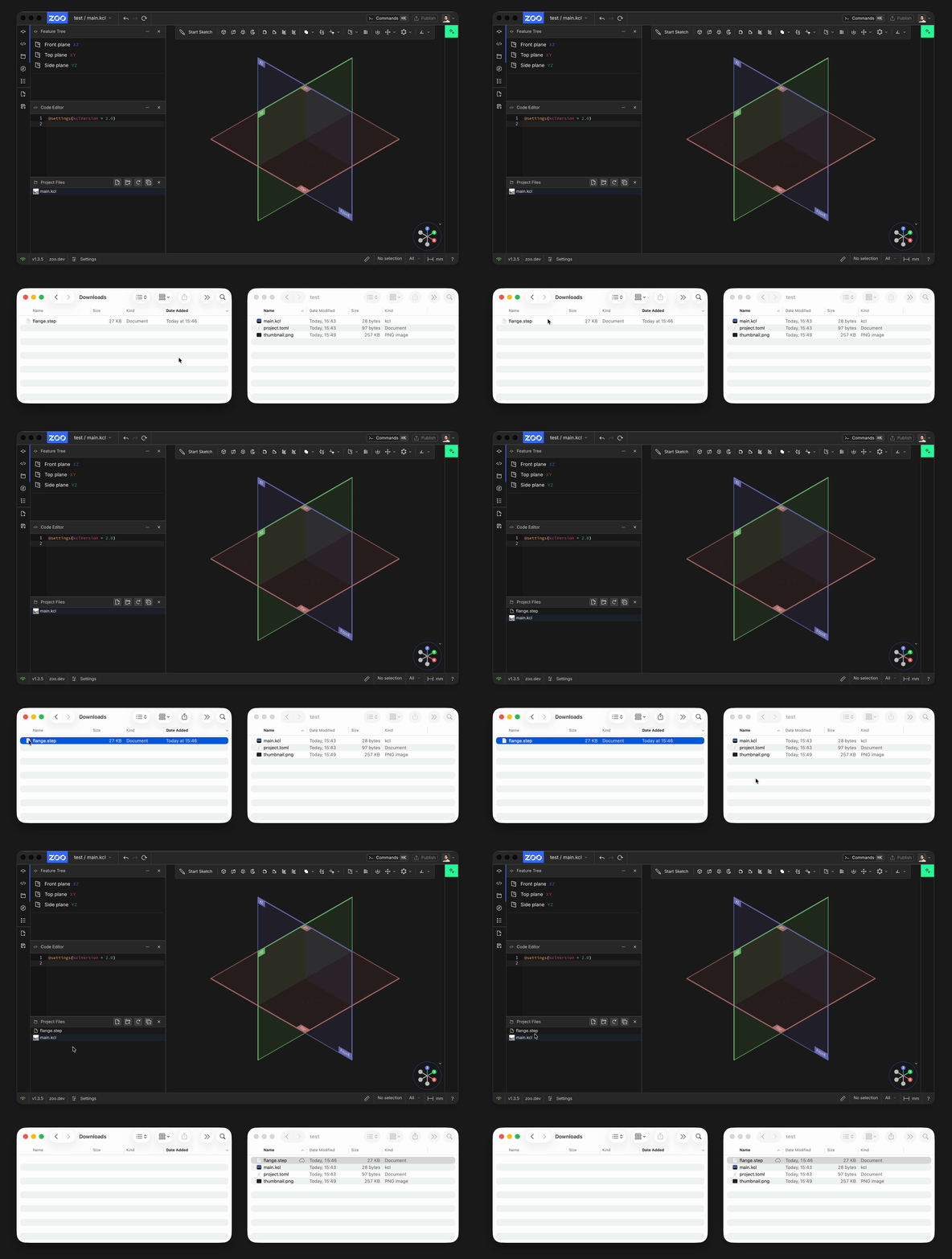
Drag the STEP file into the project folder so it sits beside main.kcl
Add the STEP import to KCL
With the STEP file in Project Files, right-click it and choose Import in current file. Complete the Import command to add the import statement to the active KCL file. Zoo Design Studio fills in the file path for you, so you do not need to type the filename manually.
Selecting a STEP file or expanding a folder does not start an import.
Recommended KCL syntax
The imported file path is quoted and can be aliased with as. For a file in a folder, use a path
relative to the project directory, such as "parts/flange.step".
After import, you can transform, style, or clone the imported geometry. For example:
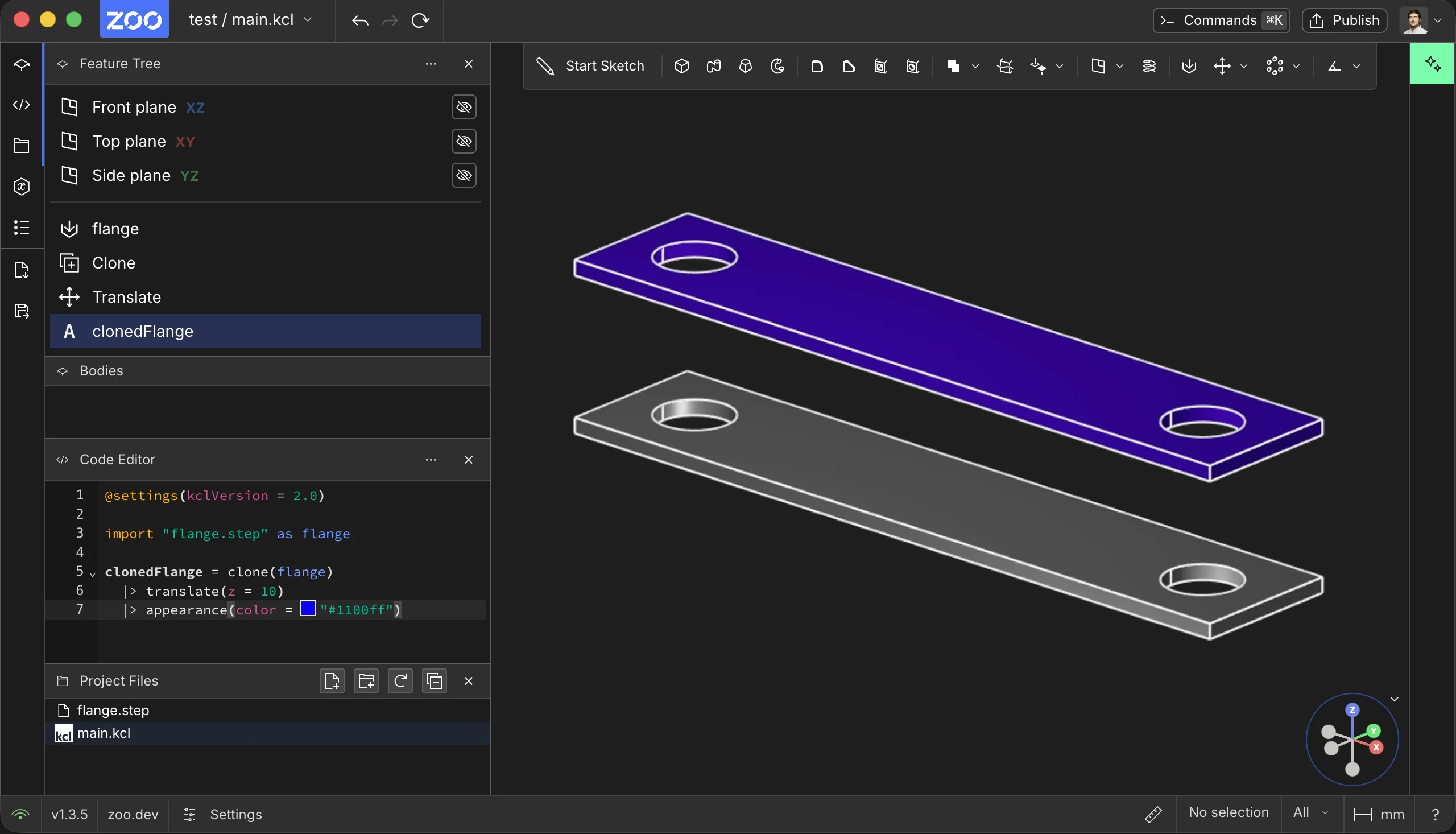
Clone an imported STEP file when you want another instance while keeping the original as a reference
You can also transform the imported file directly when you do not need the original visible as a
reference. Use clone when you need another instance of the
same imported part.
What STEP import supports
STEP files can contain precise CAD boundary representation (BREP) geometry and product structure.
Zoo Design Studio imports 3D geometry from .step and .stp files in both the desktop app and the
browser. It does not support importing 2D drawings from STEP files. In the browser, drag the file
into Project Files; the Add file to project Local Drive picker is available only in the desktop
app.
Imported STEP geometry:
- appears as external CAD geometry in the scene
- can be inspected, measured, translated, rotated, scaled, styled, and cloned
- can be used as a visual reference while building native KCL geometry
- cannot be edited directly after import; make changes in the source CAD system and reimport the file, or recreate the geometry natively in KCL
- cannot be used for boolean operations, sketch-on-face, or other modeling operations that require interaction with other scene geometry
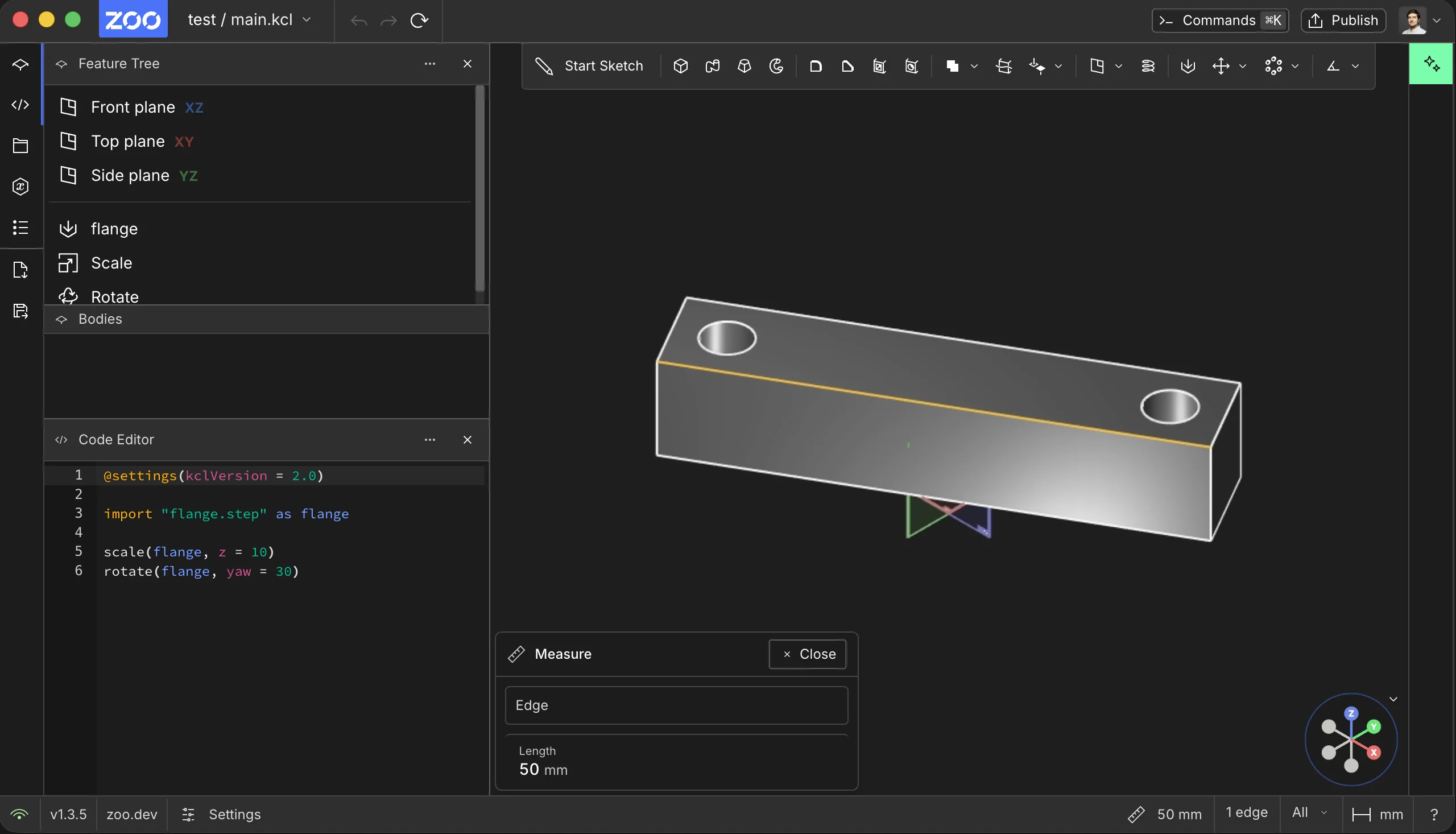
Imported STEP geometry can be measured and transformed in the scene, but it remains external geometry rather than editable native KCL feature history
If you need parametric edits or modeling operations that interact with other geometry, recreate the feature natively in KCL and use the imported STEP file as a visual reference while rebuilding the part.
Units and scale
Zoo Design Studio currently interprets STEP numeric values in the current KCL file or scene unit. It does not rescale the imported geometry from STEP unit metadata. For example, if a STEP file was authored as a 50 mm part but the current file unit is inches, that same edge measures as 50 in after import.
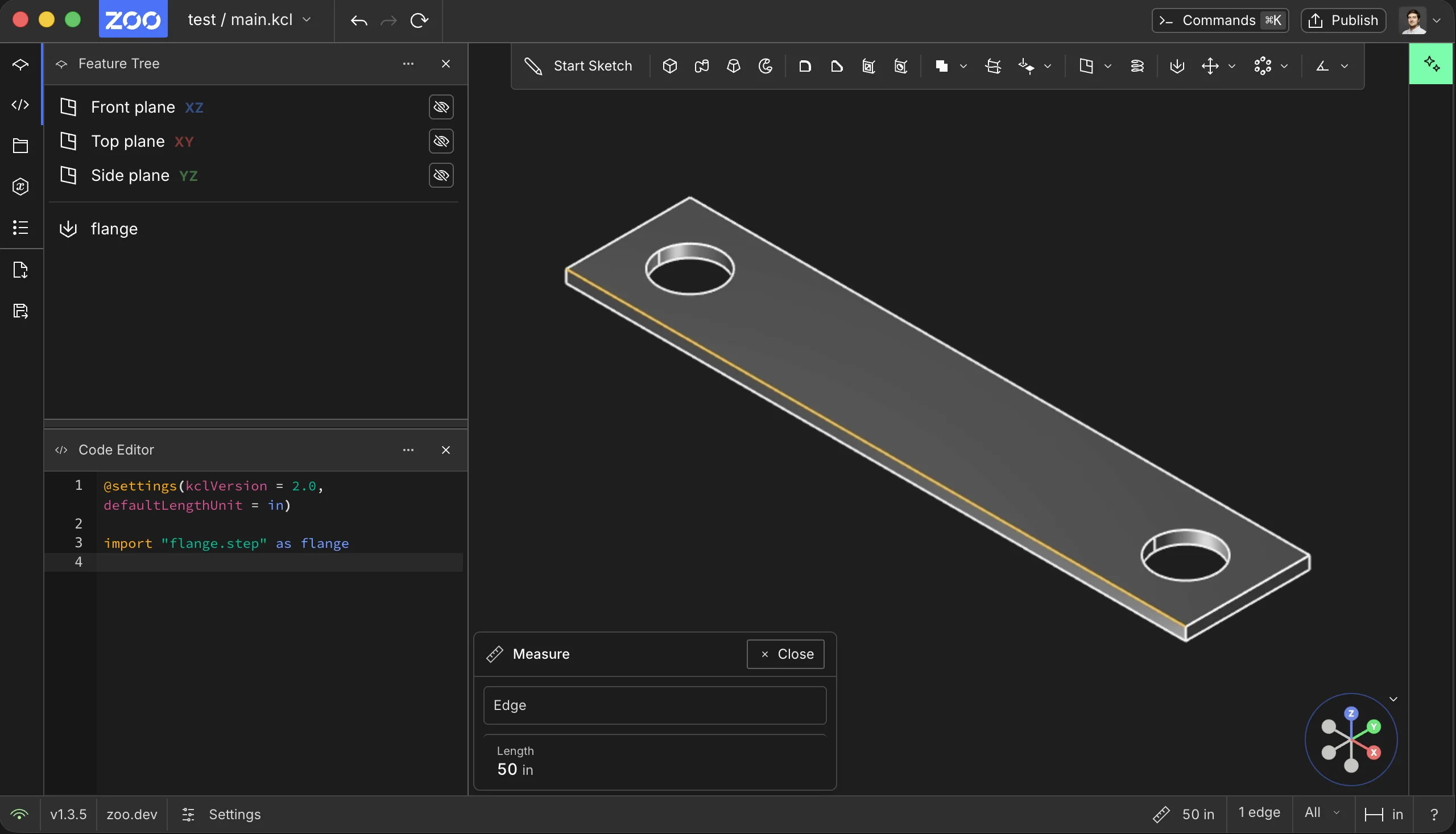
STEP values are interpreted in the current scene unit, so a 50 mm source model can measure as 50 in when the file unit is set to inches
To preserve the intended size, set the KCL file unit to match the source CAD file before importing:
If you need to keep a different scene unit, scale the imported geometry after import. For a
millimeter-authored STEP file in an inch scene, scale by 1 / 25.4:
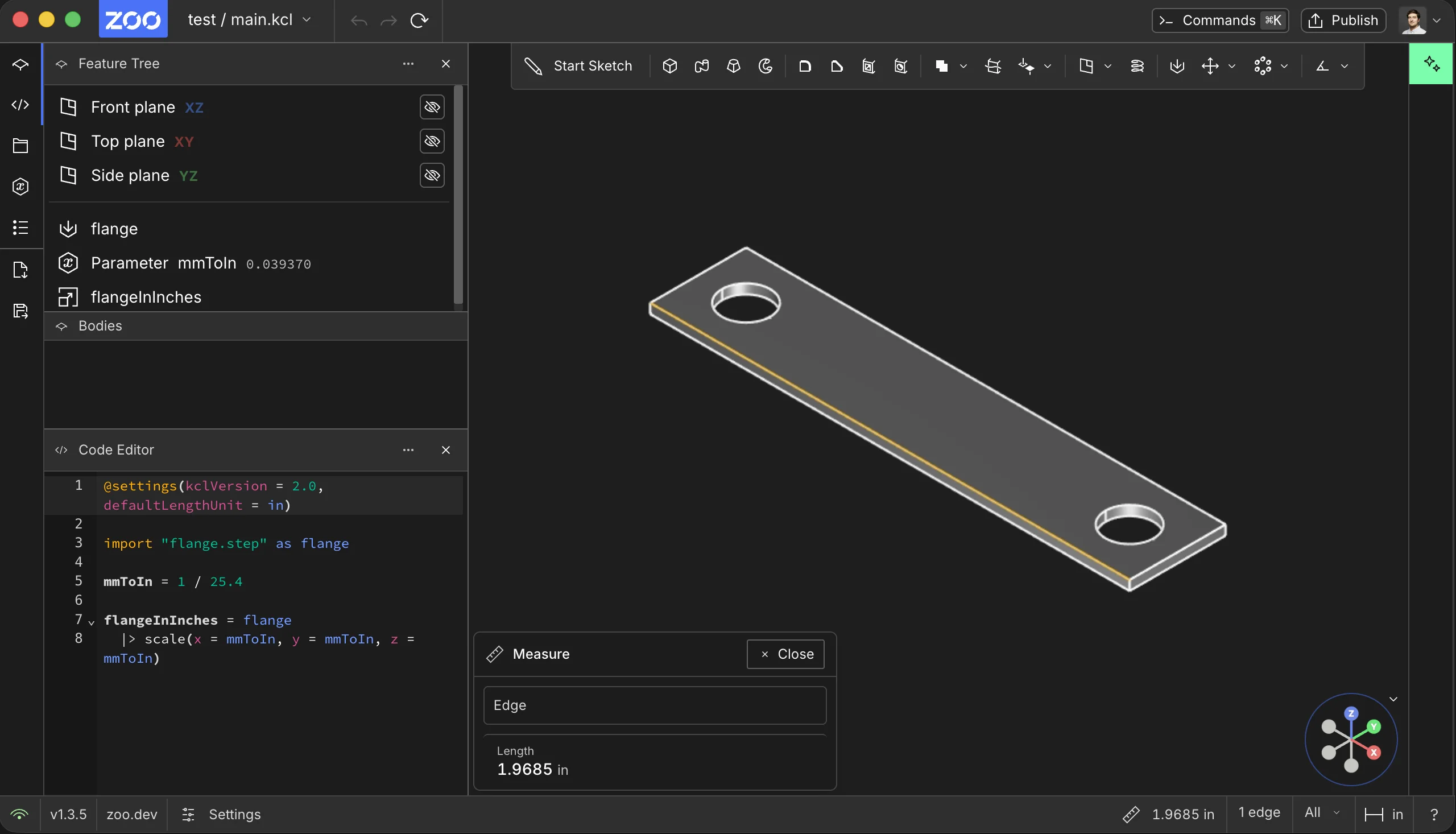
After scaling by 1 / 25.4, the 50 mm source edge measures about 1.9685 in
STEP does not use the KCL lengthUnit import attribute. That override is for formats documented with
custom length-unit support, such as STL, OBJ, and PLY.
Troubleshooting "import failed"
STEP import is still a work in progress. Some files can fail to import, especially files with many surfaces, faces, or complex topology.
To isolate whether the failure is project setup or the STEP importer, try importing a small known-good STEP file in the same project. You can use this sample:
Download flange.step
If the simple STEP file imports successfully, the project setup, file placement, and KCL import syntax are probably correct. The failing file is then more likely to be hitting a Zoo Design Studio importer issue.
Please contact support and file a bug when STEP import fails. Include the STEP file when you can, so the Zoo team can reproduce the failure and improve the importer.
What to send support
For confidential models, do not post STEP files publicly. Contact support and share the file through the secure process they provide.
Include:
- Zoo Design Studio version and whether you are using the desktop app or browser
- operating system and version
- the STEP file, when it can be shared
- the STEP file size and source CAD system
- the export settings used, if known
- the exact KCL import line
- whether smaller STEP files import successfully in the same project
- screenshots or text from the error marker, if available
Support channels:
- Zoo Community Forum for workflow questions and public discussion.
- Discord for faster back-and-forth with the team and other users.
- GitHub for public bug reports.
- Support form for direct support.