Zoo Design Studio Stream
Zoo Design Studio Stream is our interactive viewport path for Zoo Design Studio. Instead of asking your computer to run the full CAD engine and render every 3D frame locally, we run the engine session on our cloud compute infrastructure and stream the result back to the app.
That means the computer in front of you is not the performance ceiling for the CAD engine. A fast workstation is still nice to use, but the geometry engine, rendering workload, and heavy model operations are designed to run on our cloud CPU and GPU resources. Even if your local machine has a high-end GPU, the heavy engine work still belongs to the cloud session.
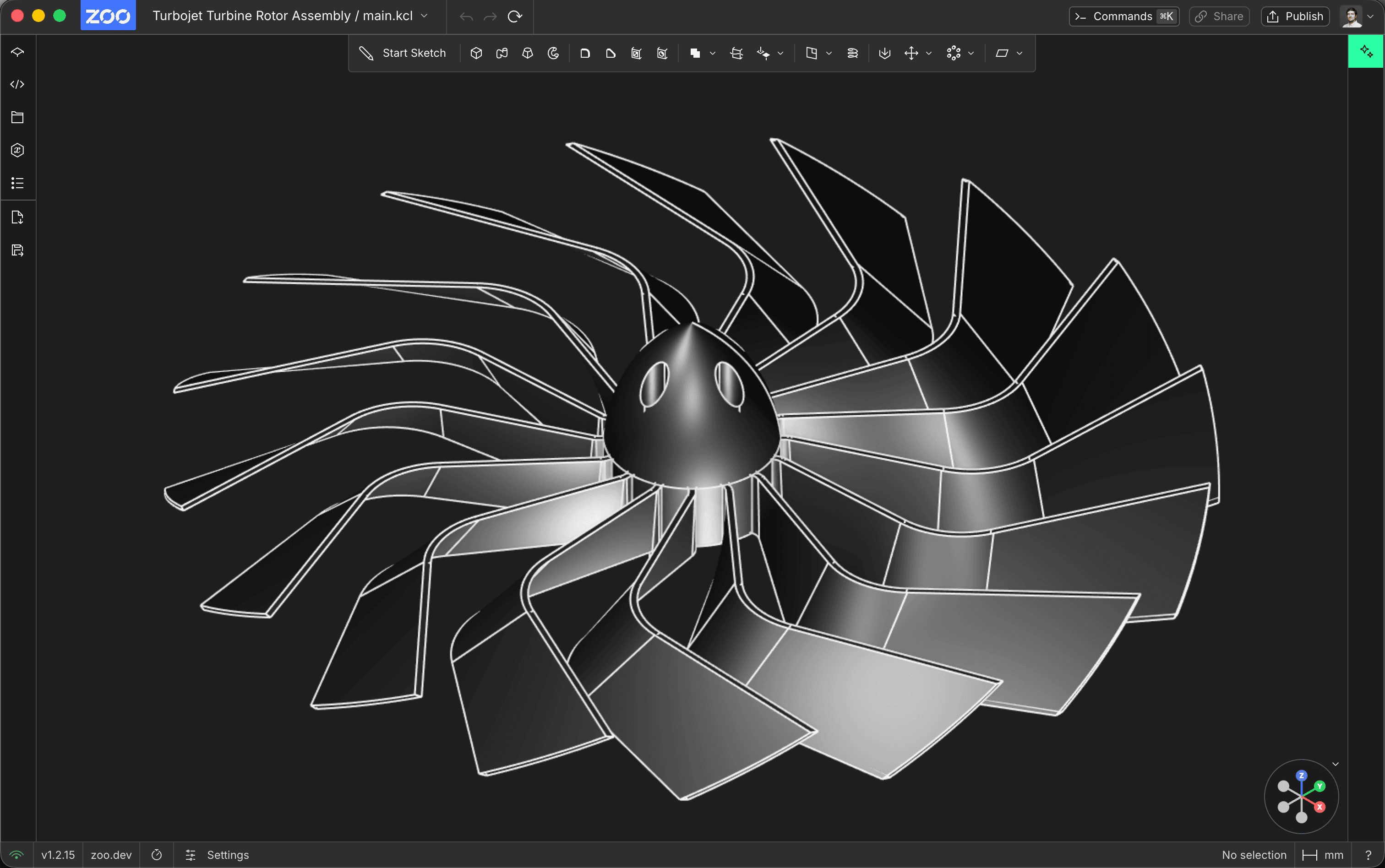
A detailed turbine rotor assembly in Zoo Design Studio. The local app displays the streamed viewport while the engine work runs on our cloud infrastructure.
How It Works
When you open a modeling session, Zoo Design Studio connects through our Modeling API and starts an engine session in the cloud. Your local app sends modeling commands, camera movements, mouse drags, and other interaction events to that session. The cloud engine updates the model, renders the scene, encodes the viewport as video, and streams those frames back to your computer.
Developers can see the underlying API surface in the Modeling API. The session path maps most directly to Open a websocket which accepts modeling commands, which includes parameters for the video feed, frame rate, and WebRTC session behavior.
Zoo Design Studio Stream uses WebRTC for the interactive video stream and API/WebSocket traffic for modeling commands. The app sends the command stream to the cloud engine, then displays the encoded viewport frames that come back from that engine session.
The result is closer to an interactive CAD stream than a traditional desktop-only CAD viewport. The viewport is a live video feed from the cloud-rendered scene, not a local render of the full model on your device. The local machine handles the app interface and video decoding. Our cloud session handles the CAD work that normally makes large assemblies, detailed models, and expensive operations punish a local workstation.
Why This Matters
Zoo Design Studio Stream changes the system requirement question from "does this computer have enough GPU for this model?" to "can this computer run the app and maintain a good connection to our cloud servers?" Because the engine runs in the cloud, the main modeling workload is not primarily capped by the CPU, GPU, cooling, battery, or memory profile of the local device.
This is useful when you want to inspect large projects, work on complex assemblies, or use a laptop that would not normally be treated like a CAD workstation. Even on a powerful desktop, the core engine work still runs on our infrastructure, so improvements to our cloud-side hardware and engine architecture can benefit your sessions without requiring you to buy a new local GPU.
Our architecture is built around this idea: a cloud-implemented, API-accessible engine that can use cloud CPU and GPU resources for interactive CAD sessions in Zoo Design Studio and in applications built directly on the Modeling API. For more technical background, see CAD + WebRTC, Fixing an H.264 encoding bug in the KittyCAD API, and Zoo CAD Engine Overview.
What Runs Locally
Your computer still matters for the parts of Zoo Design Studio that run locally:
- Running the desktop or browser application
- Displaying the user interface
- Sending keyboard, mouse, and command events
- Decoding and displaying the streamed viewport video
- Maintaining a stable network connection to our cloud servers
For most users, this means you do not need a specialized CAD workstation just to get started. A modern computer that can run Zoo Design Studio, decode video smoothly, and stay connected to the internet is enough for the local side of the workflow.
What Runs In The Cloud
The cloud session handles the engine-side work:
- Geometry evaluation and model updates
- 3D rendering for the interactive viewport
- CAD operations backed by cloud CPU and GPU resources
- AI-driven model changes that need engine execution
- Session resources that can be provisioned independently from your local machine
This is why Zoo Design Studio Stream is especially important for heavier models. If a model gets expensive, the answer is not automatically "buy a bigger workstation." The engine workload belongs to the cloud session, where we can keep improving hardware, scheduling, and engine performance centrally.
Data And Safety
Zoo Design Studio Stream is about execution and visualization. It does not change the app's source-file storage model.
Directory-library projects remain in folders on your desktop computer. Personal Cloud projects remain stored in your Zoo account, with a working copy in a managed desktop folder or browser-managed cache. The cloud session receives the model data needed to run the engine and produce the interactive stream, but it does not decide where your project is stored.
That split is the point: keep the control and portability of the app's project storage model while using remote compute for the expensive CAD work.
Network Requirements
Because Zoo Design Studio Stream is interactive, network quality matters. For the best experience:
- Use a stable internet connection.
- Avoid highly congested Wi-Fi when working with large or fast-moving scenes.
- Allow WebRTC traffic on networks, VPNs, firewalls, and proxies used to access Zoo Design Studio.
- Expect high latency or packet loss to feel like viewport lag, delayed camera movement, or reduced stream quality.
If the app opens but the viewport stays blank, reconnects repeatedly, or feels much slower than expected, check whether the network is blocking or degrading WebRTC traffic before assuming your computer is too slow. If that does not resolve the issue, contact support.